Kling 3.0 Motion Control: Make Any Photo Dance with AI — Complete Guide (2026)
Learn how to use Kling 3.0 Motion Control to animate still photos with AI. Upload a character image and a driving video, and AI transfers the motion. Step-by-step tutorial with real examples.
Ever wanted to make a photo come alive — take a still image of a person or character and have them dance, walk, or perform any motion you can capture on video? Kling 3.0 Motion Control does exactly that. Now available on Nano Banana, this is one of the few AI tools that can transfer motion from a driving video onto a completely different character image.
What Is Motion Control?
Motion Control is a video-to-video AI technology by Kuaishou (Kling). You provide two inputs:
- A reference image — a photo of a person, cartoon character, or any subject you want to animate
- A driving video — a clip of someone dancing, walking, or performing any motion
The AI extracts the motion from the driving video and applies it to the character in your reference image. The face, outfit, and identity stay intact — only the motion changes.
Example: Cartoon Character Dancing
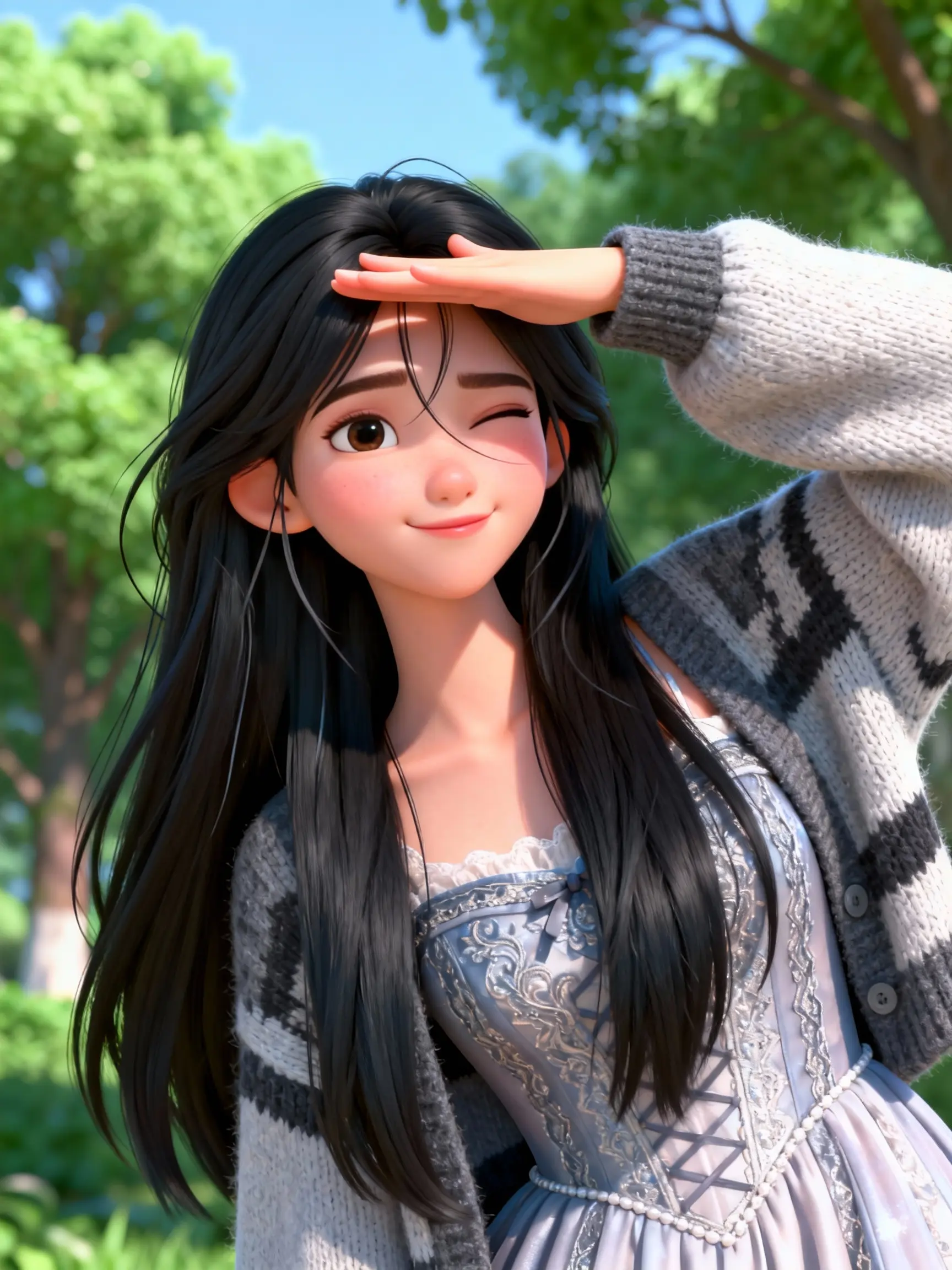
Reference Image
Driving Video
AI Output
How to Use Motion Control on Nano Banana
Step 1: Upload Your Reference Image
This is the character or subject you want to animate. For best results, use a clear, front-facing image. The AI preserves the face, clothing, and identity.
Step 2: Upload a Driving Video
This is the motion source. The video should be between 3 and 15 seconds. The AI extracts the movement pattern — dancing, walking, hand gestures, any motion — and maps it onto your reference subject.
Step 3: Write a Prompt (Optional)
Describe what's happening in the scene. For example: "The cartoon character is dancing." Keep it simple — the driving video does most of the work.
Step 4: Choose Resolution and Generate
Select 720p or 1080p. Pricing is dynamic — based on your driving video's actual duration, measured server-side. A typical 8-second clip at 720p costs around 165 credits.
Pricing Breakdown
| Resolution | Rate (per second) | Example: 8s video |
| 720p | ~$0.10/s | ~165 credits |
| 1080p | ~$0.135/s | ~220 credits |
Pricing is calculated server-side based on ffprobe-measured video duration. You only pay for what you use.
More Examples
Man Dancing
Reference photo + dance video → animated character
Casual Dance
Girl wearing white tank top and denim skirt
Tips for Best Results
- Use clear reference images — full-body or half-body shots work best. The AI needs to see the subject clearly.
- Match the video length to your needs — shorter videos (5-8s) generate faster and cost less. The minimum is 3 seconds, maximum is 15 seconds.
- Keep the driving video simple — single-person motions work better than complex multi-person scenes.
- The prompt helps but isn't required — the driving video carries most of the motion information. A short description like "dancing" or "walking" is enough.
- Try different driving videos with the same reference image — same character, different motions. Great for creating a series.
What Makes Motion Control Different from Regular Video Generation?
Regular text-to-video or image-to-video generates new motion based on a prompt or a single starting frame. Motion Control copies specific, real motion from a video you provide. This means:
- You control exactly how the character moves — not the AI's guess
- You can replicate real dance moves, gestures, or any recorded motion
- The output follows the timing and rhythm of your driving video precisely